CapCut Video Export Settings for Best Quality & No Watermark
Struggling to export your CapCut video in the best quality without a watermark? Being a beginner, didn’t know how to export it according to your required platforms? Want a simple guide through which you can export your project in high-resolution?
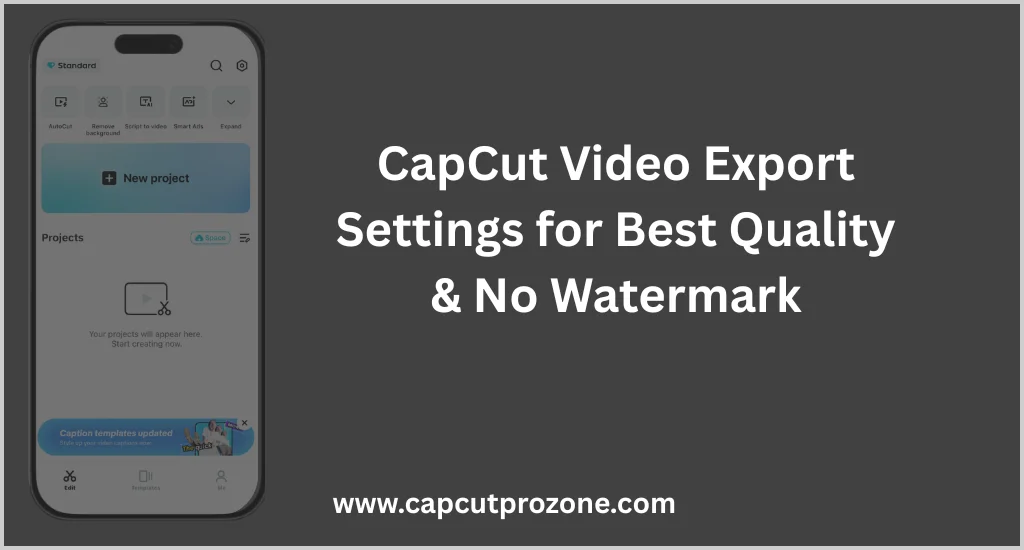
CapCut provides an easy-to-use interface that helps you export your video with custom settings. These custom settings help the editor to export your project accordingly. Following the step-by-step guide helps you to achieve the desired tasks without facing any common mistakes and issues.
Best Export Settings in CapCut for High-Quality Videos
Looking to export your video using the best export settings in CapCut? Here, our experts provide a detailed step-by-step guide through which you can export easily. Make sure to follow every step to achieve perfect and eye-catching results. You can use this guide for exporting any kind of video, like events, birthdays, and much more.
Best Resolution Settings (720p, 1080p, 4K)
- 720p: Basic quality, low storage use, fast upload
- 1080p: Best balance of quality & file size (recommended)
- 4K: Ultra-sharp quality, ideal for YouTube & cinematic videos
- Always match export resolution with original video quality
Frame Rate Settings for Smooth Video
- 24fps: Cinematic look (movies & storytelling)
- 30fps: Standard & smooth for normal videos
- 60fps: Best for fast motion, gaming, and action clips
- Export frame rate should match recording frame rate
Bitrate Settings for Clear Output
- Low bitrate → Smaller size but blurry video
- Medium bitrate → Balanced quality & size (best choice)
- High bitrate → Clear output but large file size
- Use higher bitrate for 1080p & 4K exports
Format Selection (MP4 vs MOV)
- MP4: Best compatibility, smaller size, ideal for social media
- MOV: Higher quality but larger file size
- MP4 is recommended for beginners and online platforms
CapCut Video Export Settings for Social Media Platforms
Running a social media account and want to export your edited videos to gain more audience. Exporting videos for social media platforms can only be achieved using some tips and tricks. Before exporting its important to understand the basics so that you will be able to achieve the desired task.
Best CapCut Video Export Settings for YouTube
- 1080p resolution is ideal for YouTube, giving your video a clear and professional look
- You can also set it to 4K resolution for more generic results
- 30fps works well for normal videos like slow-motions, and more, while 60fps is better for fast-action content, like travelling, vlogging, and more
- Bitrate: High for clear video quality
- Choose the “ MP4 “ format for quality output
- Choose the 16:9 aspect Ratio for perfect fit
Best CapCut Export Settings for TikTok
- Vertical 9:16 aspect ratio with 1080p resolution is perfect for TikTok
- To get smooth results on short reels, make sure to set the FPS to 30
- The MP4 format is safe and recommended for TikTok uploads
Best Export Settings for Instagram Reels
- To get a professional and clean look for Instagram reels, set the resolution to 1080p
- 30fps works well for normal videos, while 60fps is better for fast-action content
- Make sure to set a high bitrate to ensure minimal compression and sharp quality
- Format: MP4
- Select the standard aspect ratio of 9:16 for Instagram to get a perfect video when it gets uploaded
Export Settings for YouTube Shorts
- Set the resolution to 1080p
- To get the smoothness in the video, set the frame rate to 30fps
- Bitrate: Medium to High
- To get the quality export, make sure to choose the MP4 Format
- Set the Aspect Ratio to 9:16 (Vertical), so that your video will not cut when you uploaded on the platfrom
Common CapCut Video Export Settings Problems & Solutions
Beginners face a lot of common mistakes and issues while exporting videos in CapCut. Here, our experts added some top mistakes to avoid while editing. By avoiding these mistakes, you can boost your editing speed and deliver quality results. It also helps you to learn new tips and tricks while unlocking new tools.
Video Quality Reduced After Export
Do you face the issue of bad quality when you preview your exported video? Beginners face this issue because they didn’t use the right exporting settings for the desired project. While editing, make sure to gather the information before exporting, like the uploaded platforms, purpose, and more. Ensure that you adjust the export settings for the same project with multiple export settings to select the ideal one.
CapCut Export Taking Too Long
Sometimes CapCut took a lot of time while exporting the video. Beginners face this issue, and they start using another application. Make sure to remove unused applications to free some memory. Try clearing the app cache and data to get quick results
Conclusion
CapCut helps beginners to export their projects in high-quality resolution. CapCut provides advanced exporting settings with easy-to-ues interface. You don’t need to have high editing knowledge to export projects. Our experts provides editing guide that helps you to deliver quality results easily.
We also cover basic export settings for social media platforms like YouTube, TikTok, Instagram, and more. Before editing, make sure to gather the information, like the uploaded platform, aspect ratios, and more, to deliver professional results.